Pick point location
The pick point position and orientation can be specified in two ways:
Exact values, manually entering the six coordinates for position and orientation. This option is useful when dealing with models taught from CAD, as pick points can be placed with absolute accuracy with respect to the CAD origin.
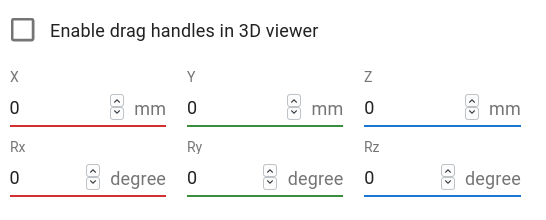
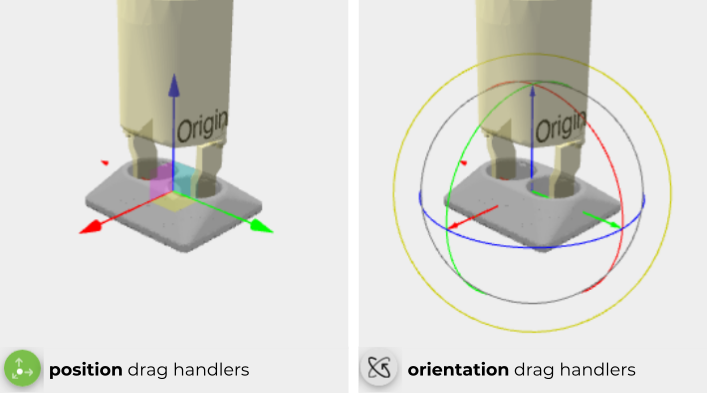
Interactively, by enabling Enable drag handles in 3D view. This will show interactive handles that you can click and drag. You can modify the position or orientation by selecting one of the icons below, which appear on the top-left of the 3D view.
Pick point reference
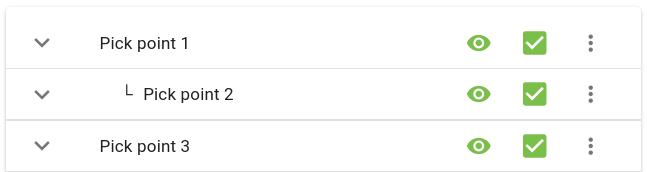
By default, the pick point location is expressed relative to the object origin. By changing the reference point, it’s posible to set the location as a relative offset with respect to an existing pick point. In the example below, Pick point 2 is expressed using Pick point 1 as reference, hence appears nested inside it.
Apart from the pick point creation convenience, the reference point plays also a role in simplifying part drop-off. When an object can be picked from multiple pick points, but needs to be dropped-off at the same location, it’s possible to define a single drop-off point in the robot program. Refer to this example to learn more about how to use the point reference in combination with the pick point offset in the robot program.