AI background filter
Note
The following requirements are needed for enabling this feature:
On the hardware side, a standard or high performance Pickit processor, which have a dedicated GPU.
On the software side, the AI background filter license module.
The AI background filter uses a Visual-Language Model (VLM) to remove background regions not relevant to object detection using simple text prompts. This filter simplifies application setup, improves detectability and reduces false positives.
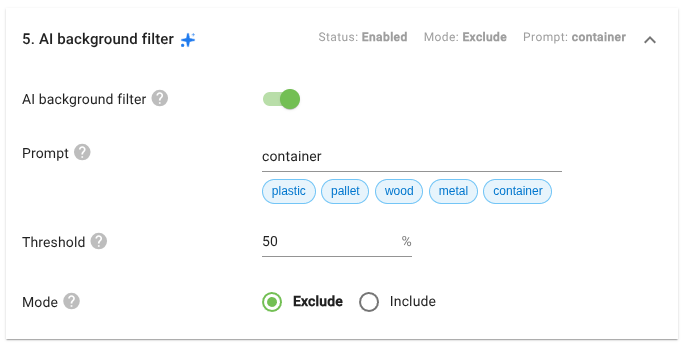
The prompt matches object categories and not specific object instances, so a single filter configuration can generalize across a wide range of application variability.
The threshold determines how strict the filtering is. Higher threshold values result in stricter filtering. This value is application dependent; some applications need lower values and work reliably, while others might need higher values.
The regions matched by the prompt can be either excluded or included from object detection.
Example use cases
Consider a bin picking application where we pick from bins that are both slanted and deformed, as shown in the camera 3D image (below top).
Each time a bin is emptied, it’s replaced by a forklift with a new one that is also slanted, but might be deformed differently than the previous one.
Using the AI background filter with the prompt crate (below right), it’s possible to exclude the bin from object detection, and prevent potential false positive matches on rounded parts of the bin.
Note that collision prevention with the robot tool will use the full scene, including the slanted bin.
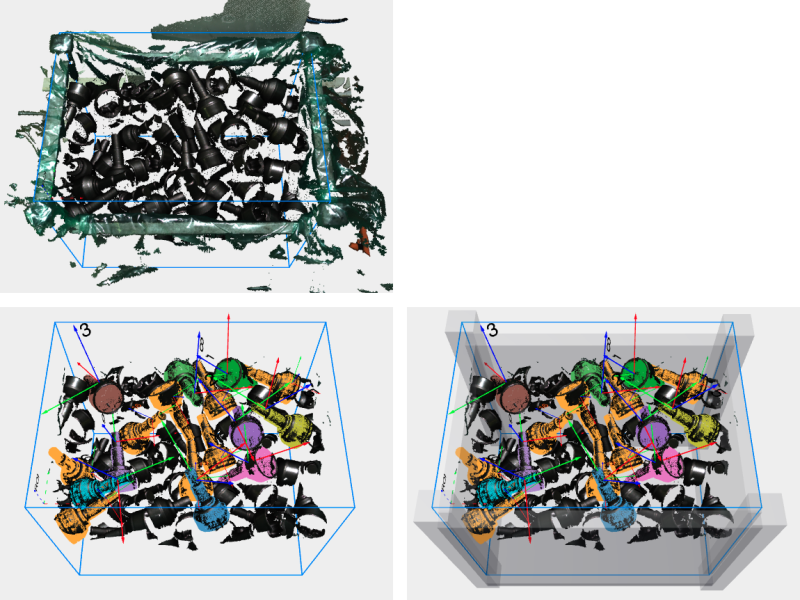
Now consider the case of a bin picking application where there is a plastic-lined bin (below left). The plastic lining has a varying shape from bin to bin, and even between picks, and can “bulge” into the bin. On the one hand, we would like to exclude the lining from object detection, and also from collision prevention, as it’s acceptable that the robot tool comes in contact with the bulging lining regions. On the other hand, we would still like to prevent collisions between the robot tool and the actual rigid bin.
To solve this application, we do the following:
Enable the AI background filter with
plasticas prompt. This removes the plastic lining from the ROI (below, bottom left).Perform collision prevention against camera points inside the ROI only (not the full scene), excluding the plastic lining.
Add a bin collision obstacle to prevent collisions with the rigid bin structure (below, bottom right).
Tip
You can configure collision prevention with the camera points to be with respect to the full scene, or just the ROI contents. This and the previous example showcase the two options.
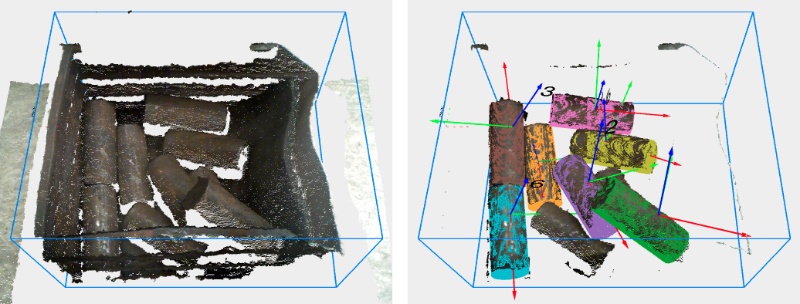
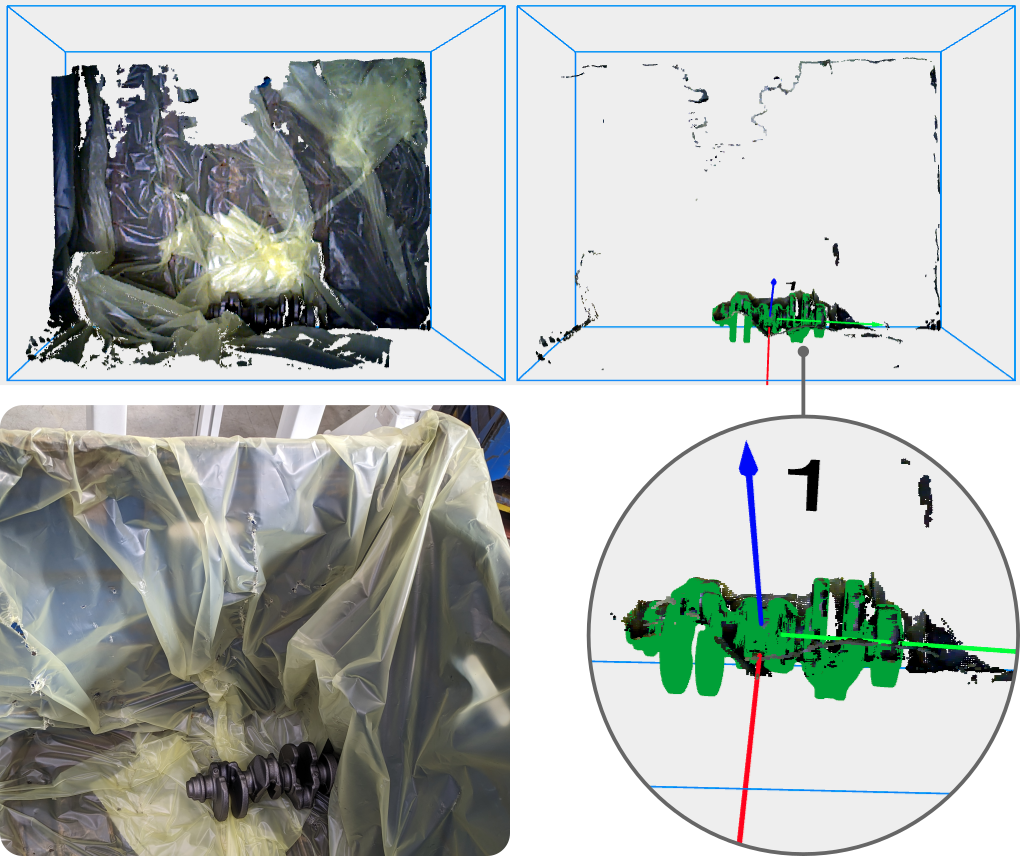
The next example is also of a plastic-lined bin.
In this case, the bin is almost empty and there’s one crankshaft partially occluded by abundant plastic, barely visible to the naked eye (below left).
Without the AI background filter, no part is detected.
With the AI background filter enabled with prompt plastic, Pickit can more reliably detect parts, including the crankshaft from this example (below right).
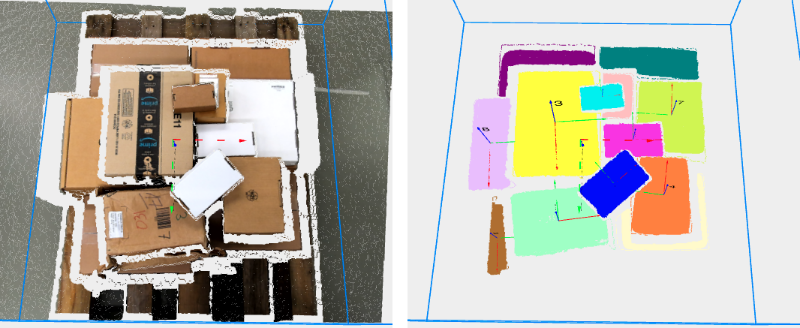
In the last example, the pallet supporting the boxes can be filtered out with the prompt pallet.