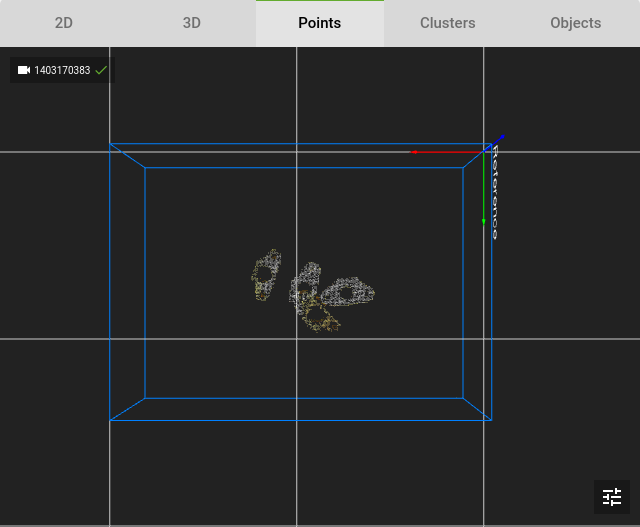
Exclude 3D information based on color
The color filter can be used to explicitly include or exclude points with a certain color. Several use cases for the color filter are:
Excluding parts of a bin
Detection of thin parts on a flat surface
Note
The color filter is a light dependent solution. This requires very stable light conditions (same illumination, no changing shadows) for reproducible results.
Example of detecting thin parts on a flat surface
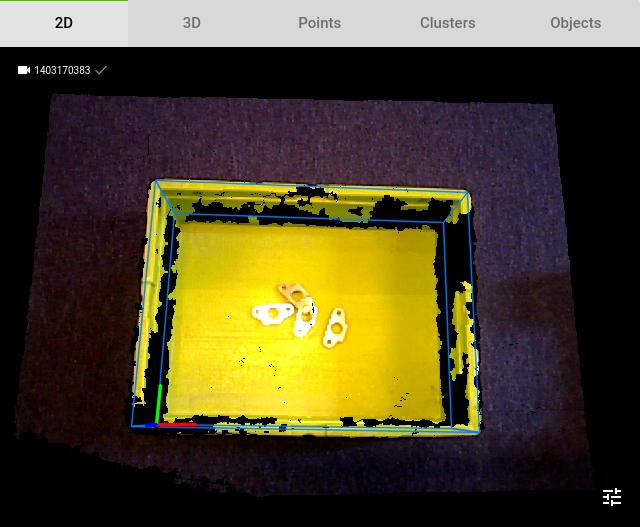
This is an example case where we want to detect thin parts at the bottom of a bin. Since these parts are very thin, their 3D shape does not stand out from the bin bottom, as their thickness is smaller than the noise levels of the cloud. It is therefore impossible to define the ROI box dimensions such that only points from the parts are included, without any points from the bin.
1. Define your ROI
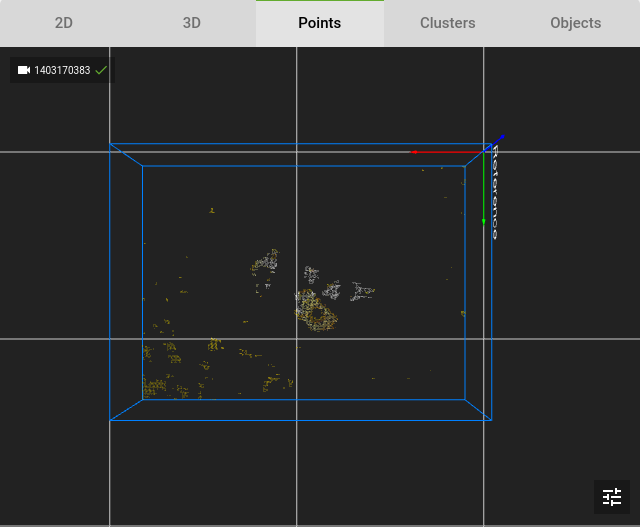
When building the ROI box without the color filter, we can see 2 problems:
We still see some parts of the bottom in the Points view
The point cloud of our parts is not very good.
When dealing with parts that are not as thin as these, we can increase the Z-min of the ROI to remove the bottom, or lower the Z-min to make the parts more visible.
2. Lower the Z-min of the ROI
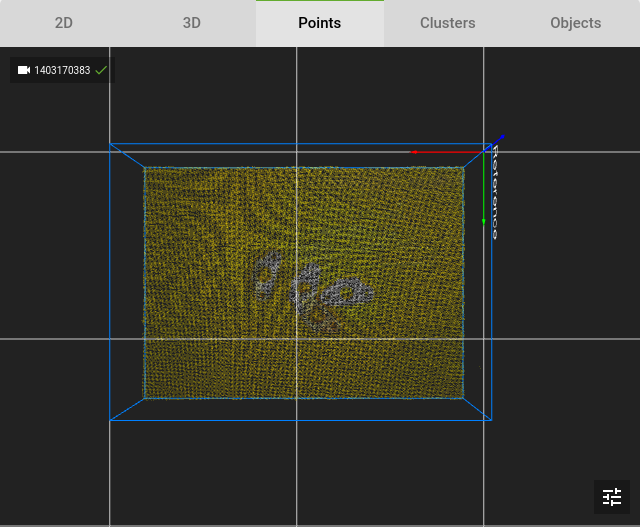
We lower the Z-min of the ROI to include the whole bottom of the bin, this makes our point cloud unusable for detections.
3. Exclude the color of the bin bottom
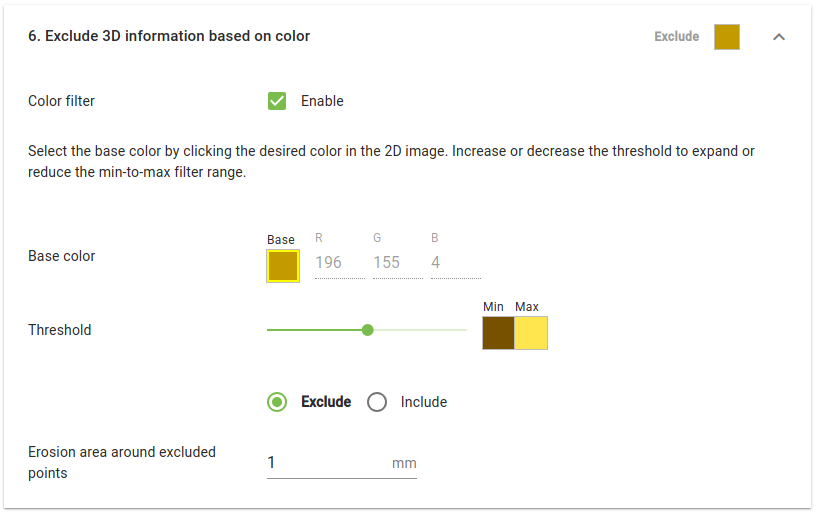
We can exclude all the points of the yellow bin by following these steps:
On the Setup page, in section Exclude 3D information based on color, check the Color filter checkbox.
The 2D view is automatically opened, allowing you to click on the color to be filtered. In this case, select the yellow bin, since we want to exclude this color.
Choose the Exclude option to discard the points of the yellow bin.
Adjust the Threshold slider to adjust the range of color that will be excluded
Go back to the Points view and press Detect to check the results.
Adjust the Threshold until only the parts are visible.
In the resulting point cloud, the parts are cleanly visible, without any points of the bin.