Viewer
The Pickit viewer is the main component of the Pickit web interface for providing visual and qualitative feedback on the camera view and detection results. Quantitative information about detection results is provided by the complementary objects table component.
The Pickit viewer consists of a number of 2D and 3D views arranged in tabs:
The following overlays are shown in all views:
Top-left: Camera serial number and indicator that a correct camera profile was loaded.
Lower-left: Snapshot saving button.
Top-right: Reset viewpoint button (not available in the 2D view) and change viewer size button.
Lower right: View-specific settings. In all but the 2D view, it’s possible to optionally visualize a 3D model of the connected camera(s) and the robot (only for Universal Robots).
Also common to all views, a notification is displayed when no camera is connected and no snapshot is loaded:

2D view
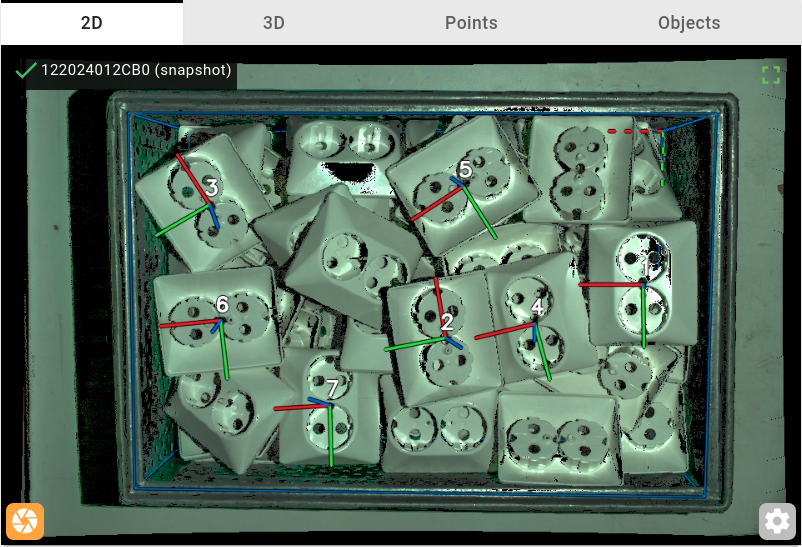
This view displays a 2D image of the complete field of view of the camera.
After each detection, pick points and object markers are also shown for a brief period of time.
Note
SD cameras are streaming, so this view is a live stream of what the camera is currently seeing.
HD cameras are non-streaming, so during detection, this view shows the camera capture used for the last detection. However, when performing calibration, or building a ROI with markers, this view also streams.
3D view
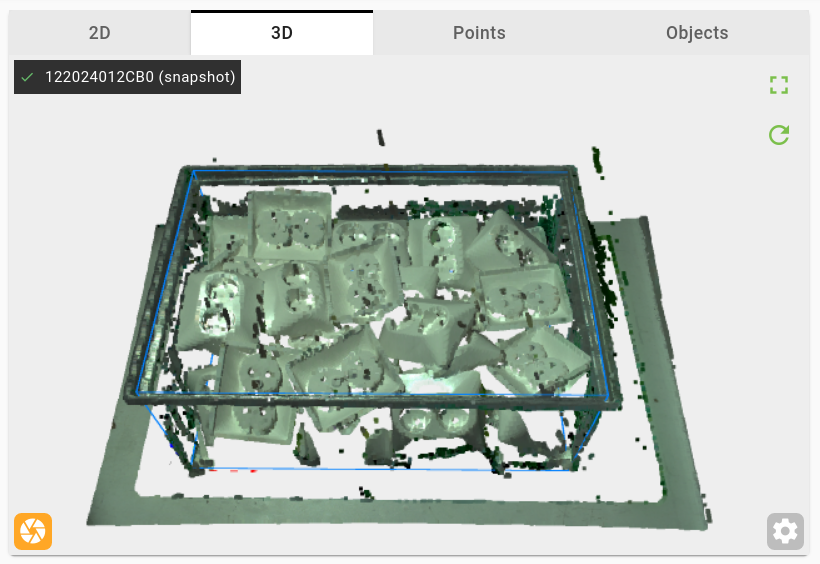
This view displays the full 3D point cloud, captured at the last Pickit detection.
All points in the field of view of the camera are shown in this view, whereas in the points view only the points inside the ROI box are shown.
Points view
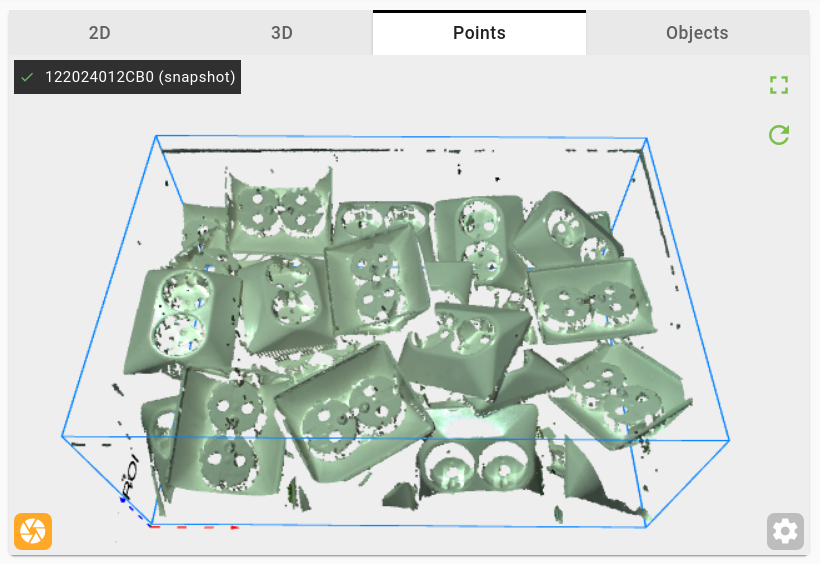
This view displays the 3D point cloud used in the last Pickit detection.
Only points used for detection (that lie inside the ROI box) are shown, whereas in the 3D view all points in the field of view of the camera are shown.
Clusters view
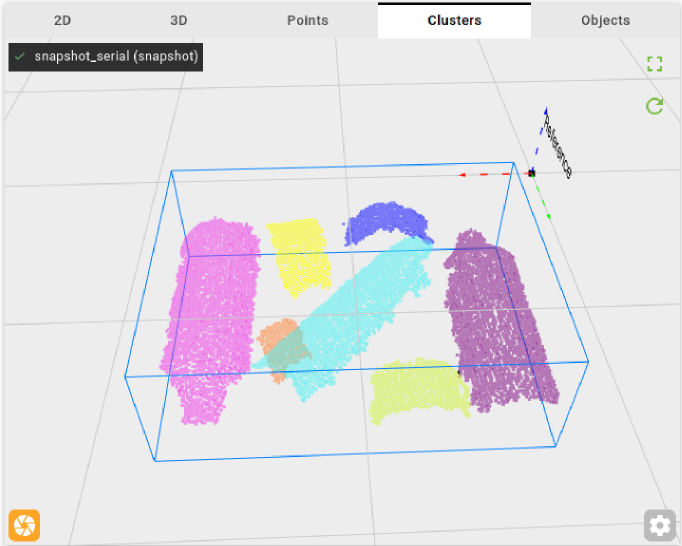
This view displays the 3D point clouds of all clusters found in the last Pickit detection. Each cluster is shown in a different color.
This view is only available for the Pickit DeepAL, Flex and Pattern detection engines.
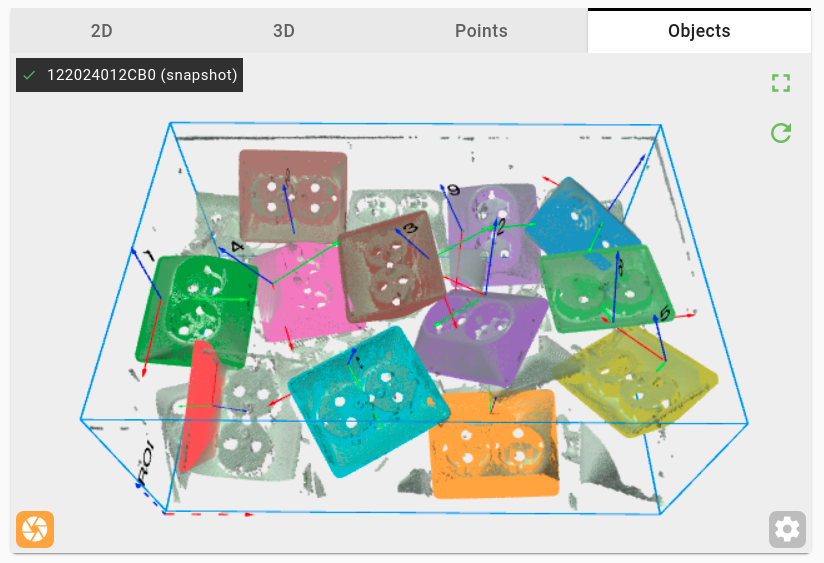
Objects view
This view displays the 3D point clouds of all objects found in the last Pickit detection.
Each pickable object is shown in a different color. Unpickable objects are always shown orange, and invalid objets are always shown red.
The selected pick point of each object is displayed along with the object number, which indicates the picking order.
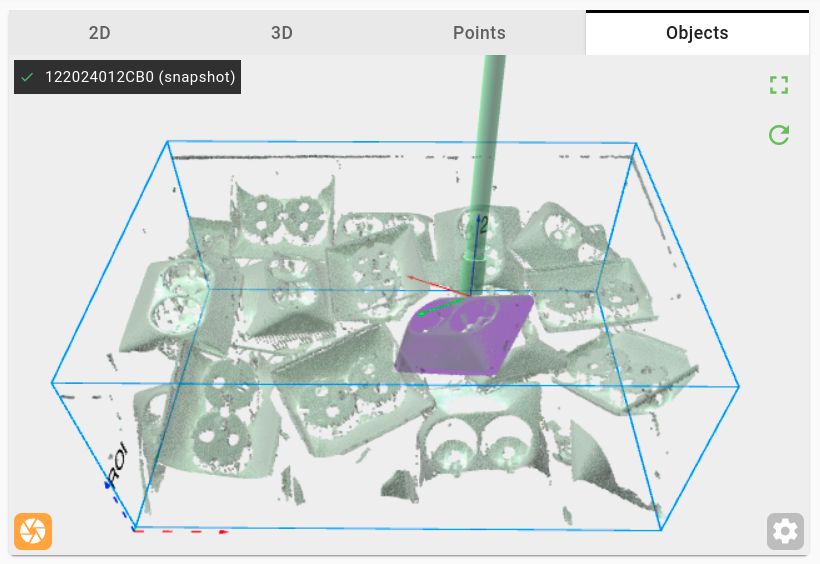
For the Pickit Flex and Pattern engines, a green overlay of the detected geometric shape (e.g. cylinder, rectangle) is additionally shown.
When a single object is selected in the objects table by clicking on it, the objects view only shows this object and additionally renders the tool model at the pick point.