ABB installation and setup
The setup of Pickit with an ABB robot consists of 4 steps:
Check controller and software compatibility
Pickit is compatible with controllers of version IRC5 and OmniCore with RobotWare 5 or 6 and furthermore. To communicate with Pickit, the following controller modules need to be installed:
For IRC5
616 PC interface (Socket messaging)
623-1 Multitasking
For OmniCore
3119-1 RobotStudio Connect
3114-1 Multitasking
To check this compatibility, open RobotStudio and follow the next steps:
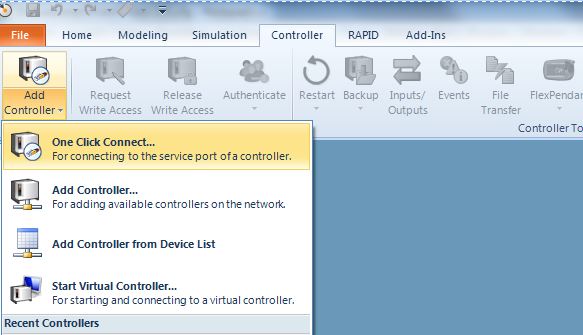
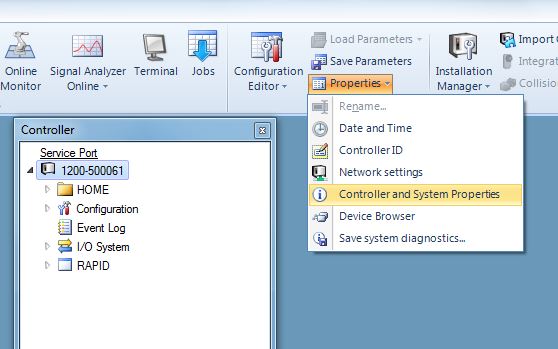
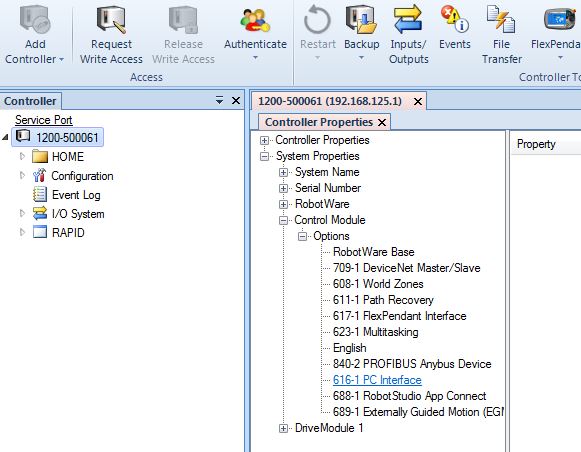
If you don’t have the right software version or module please contact your local ABB distributor.
Setup the network connection
Hardware connection
The Pickit processor and the robot controller connect via Ethernet. An Ethernet cable should be connected to the WAN port of the robot controller, and to the Pickit processor as described here.
IP configuration
Open RobotStudio and follow the next steps:
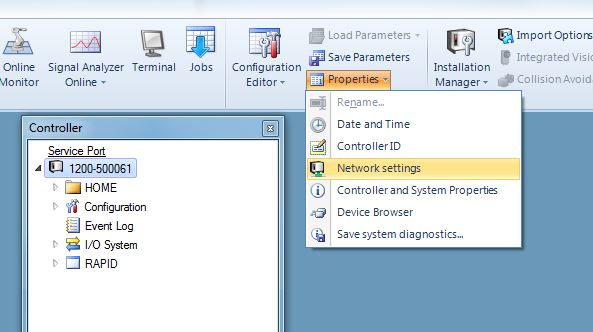
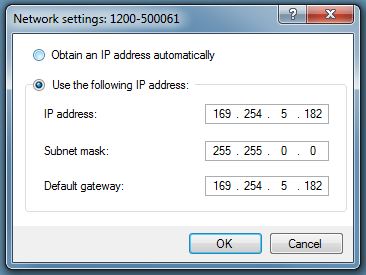
Set the IP address of the controller preferably to 169.254.5.182 which is an IP address in the same subnet as the Pickit IP and set the subnet mask to 255.255.0.0.
The IP address of the robot can not be the same as the IP address of Pickit.
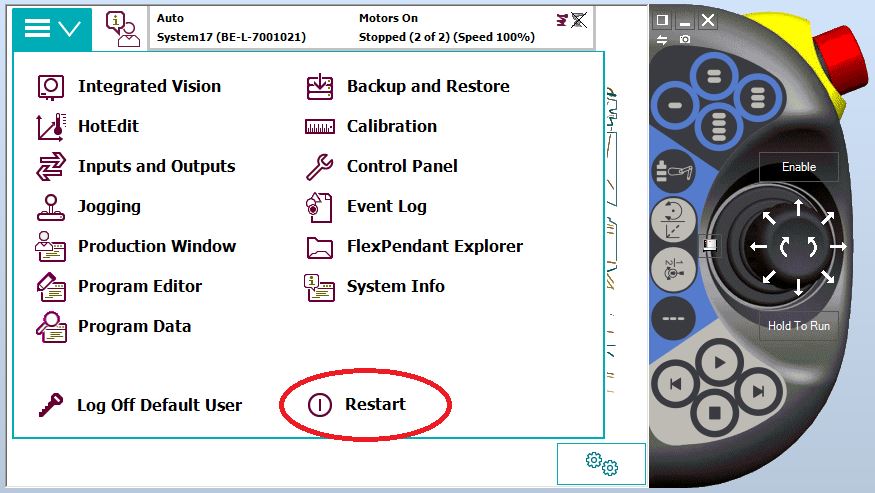
After these steps restart from the Flex pendant (assuming you have no write access yet).
Load the program files
Download the right files
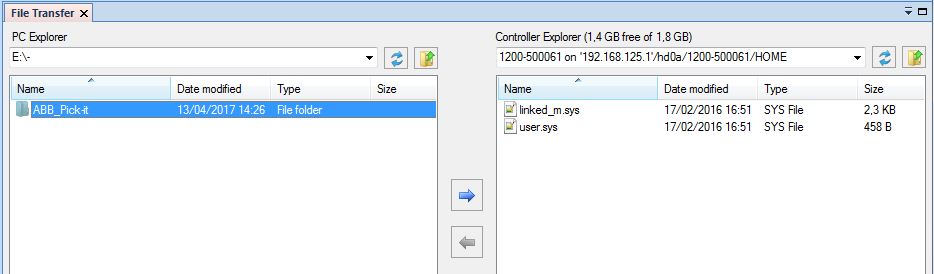
Upload the files to the robot
Upload these files using File Transfer.
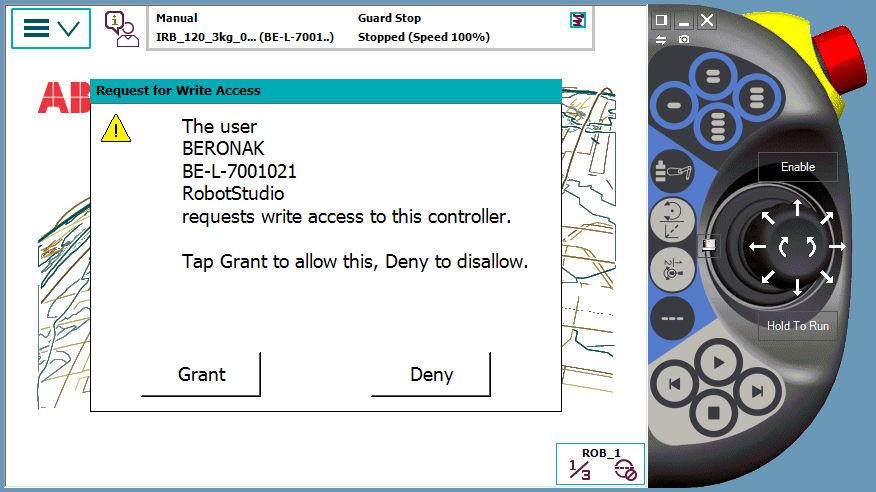
Manual mode: press ‘Grant’ on the Flex pendant
Automatic mode: not necessary
Load parameters from controller
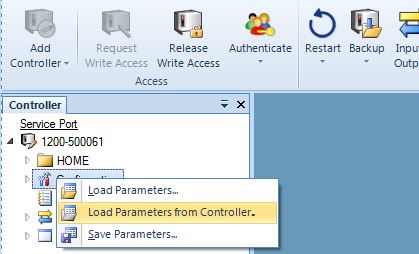
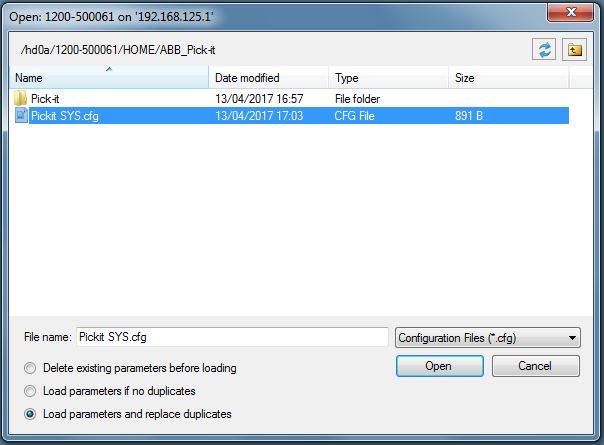
For an ABB controller with RobotWare 5 select the Pickit SYS RW5.cfg file.
For an ABB controller with RobotWare 6 select the Pickit SYS RW6.cfg file.
For an ABB controller with RobotWare 7 (e.g. for OmniCore controllers) select the Pickit SYS RW7.cfg file.
For the ABB YuMi, select the Pickit SYS YuMi.cfg file.
This will load the required system modules in corresponding tasks.
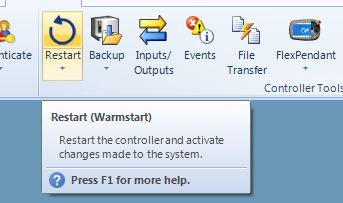
Restart the controller.
Test robot connection with Pickit
Details on testing this connection can be found on: Testing the Robot to Pickit connection