Warning
You are reading the documentation for an older Pickit release (4.0). Documentation for the latest release (4.1) can be found here.
Bring your Pickit system online
Note
If you’re interested in upgrading your Pickit software version, you don’t need to bring your Pickit system online. Updates can be downloaded from any computer with Internet access, as described in the Pickit system software upgrade article.
This article covers how to bring your Pickit system online for the exceptional event that it requires remote service from a Pickit support engineer. During normal operation, it’s not required to bring your Pickit system online.
To bring your Pickit system online for remote service, you need a wired Ethernet connection to a network with Internet access, as shown below right.
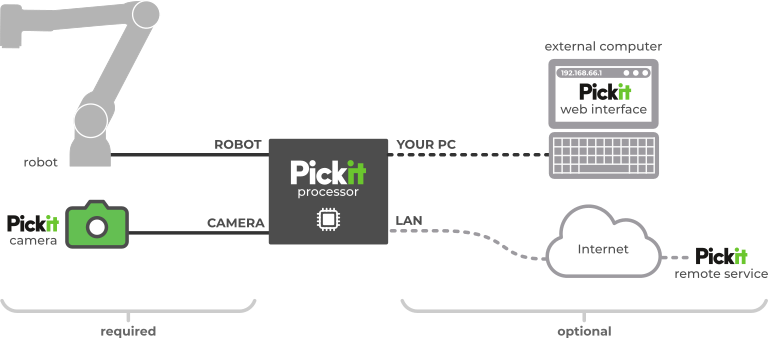
Steps to connect via Ethernet
Navigate to the Network settings and make sure there is an Ethernet port configured as a LAN port.
Connect the LAN port of the Pickit processor to a network with Internet access.
Confirm that that the network settings are correct, in particular, that the IP address field represents Pickit’s IP in your network. If the network configuration changed, don’t forget to click the Save configuration button.
Check connectivity with the Pickit servers by clicking the Check Internet Connectivity button at the bottom of the network settings. If you see an acknowledgement of success, your system is ready for remote service!
Troubleshooting an unsuccessful connection
This section provides guidelines to troubleshoot if the connectivity check above was not successful. There are two scenarios that can take place, which are described below. If connection problems persist after following these guidelines, please contact us at support@pickit3d.com, and we will assist you in finding a solution.
Not connected to the Internet
If there’s no Internet connection, check that:
The LAN port network settings are correct (DHCP vs static, IP address, subnet mask and gateway).
The Ethernet cable is not physically damaged and that the plugs are well connected to their sockets.
The cable is connected on one end to the LAN port of the Pickit processor.
The cable is connected on the other end to a network socket with Internet connection.
Connected to the Internet but not to the Pickit server
Pickit communicates with its server using OpenVPN via TCP port 443. When it can’t be reached, contact your system administrator, as it’s usually the result of:
The network configuration preventing Pickit from resolving the name of the OpenVPN server
vpn.pickit3d.com.A perimeter firewall filtering incoming OpenVPN packets.
A software firewall filtering incoming connections on port 443. Many firewalls block incoming connections by default, unless configured otherwise.
A firewall’s web filter filtering out VPN communication on port 443, as it doesn’t look like normal web traffic.
A NAT gateway not having a port forwarding rule for TCP 443 to the internal address of the Pickit machine.
Additionally, the MAC address of the Pickit LAN port should be whitelisted. The MAC address is shown in the network settings.