How to use Pickit Bags
This article guides you through the necessary steps to properly use the Pickit Bags engine.
Note
By default the Pickit Bags engine is not exposed in the web interface. To enable it, open the Settings, navigate to Advanced settings > Application-specific engines and turn on the Enable Bags engine toggle.
Teach the Region of Interest
When teaching the Region of Interest, make sure to attach its origin to the Robot base frame, if the camera is mounted on the robot flange. Place the markers on the floor, but not on the pallet. The XY-plane of the ROI frame should be the floor plane.
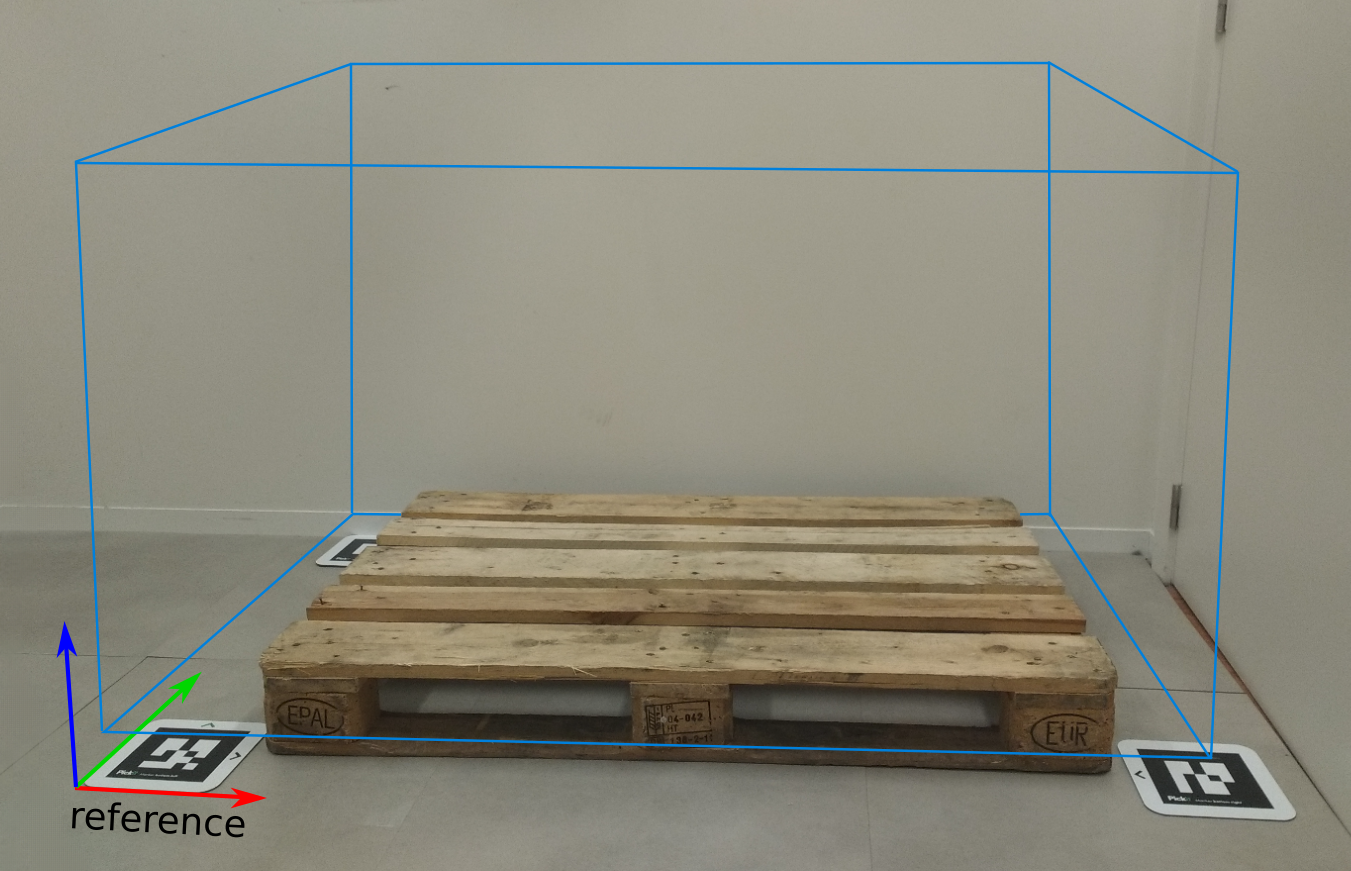
Fine-tune the Region of Interest such that it includes the top of the pallet, but not the floor. Make sure that the Region of Interest is large enough to include the whole pallet with bags.
Pallet configuration
Bag pattern
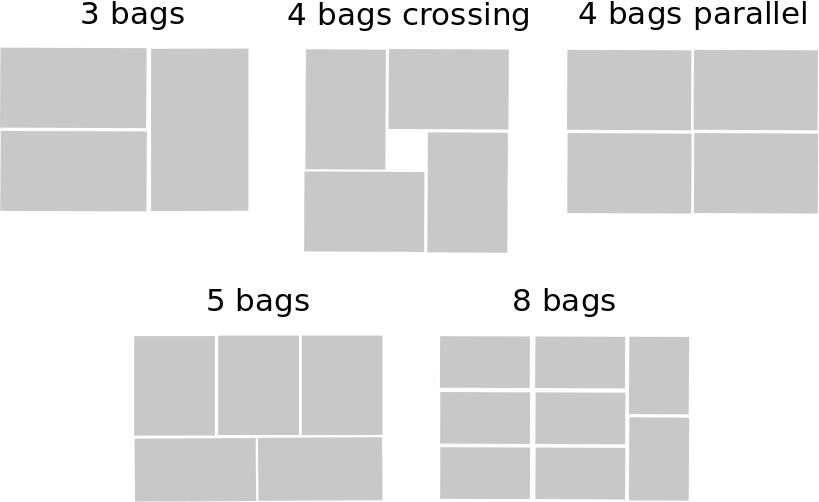
In the Detection page, section Bag pattern, specify the pattern in which the bags are disposed on the pallet.
The Pickit Bags engine supports five patterns: 3-bag, 4-bag (crossing and parallel), 5-bag and 8-bag patterns.
Note
By default, the Pickit Bags engine assumes that the layers are full (no missing bags from the pattern). There is an option to detect whether the top layer is full or incomplete, but it should only be used for specific cases.
Real-life examples of pallets for each supported bag pattern are shown below:
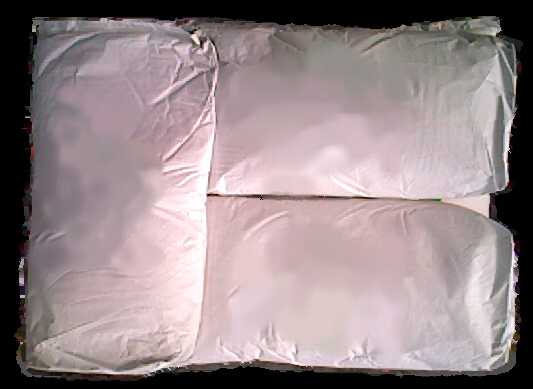
3-bag pattern
The 3-bag pattern consists of two horizontal bags and one vertical bag.
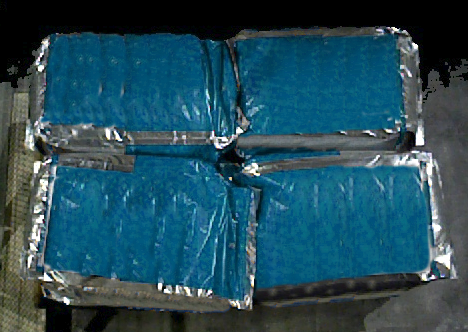
4-bag pattern (crossing)
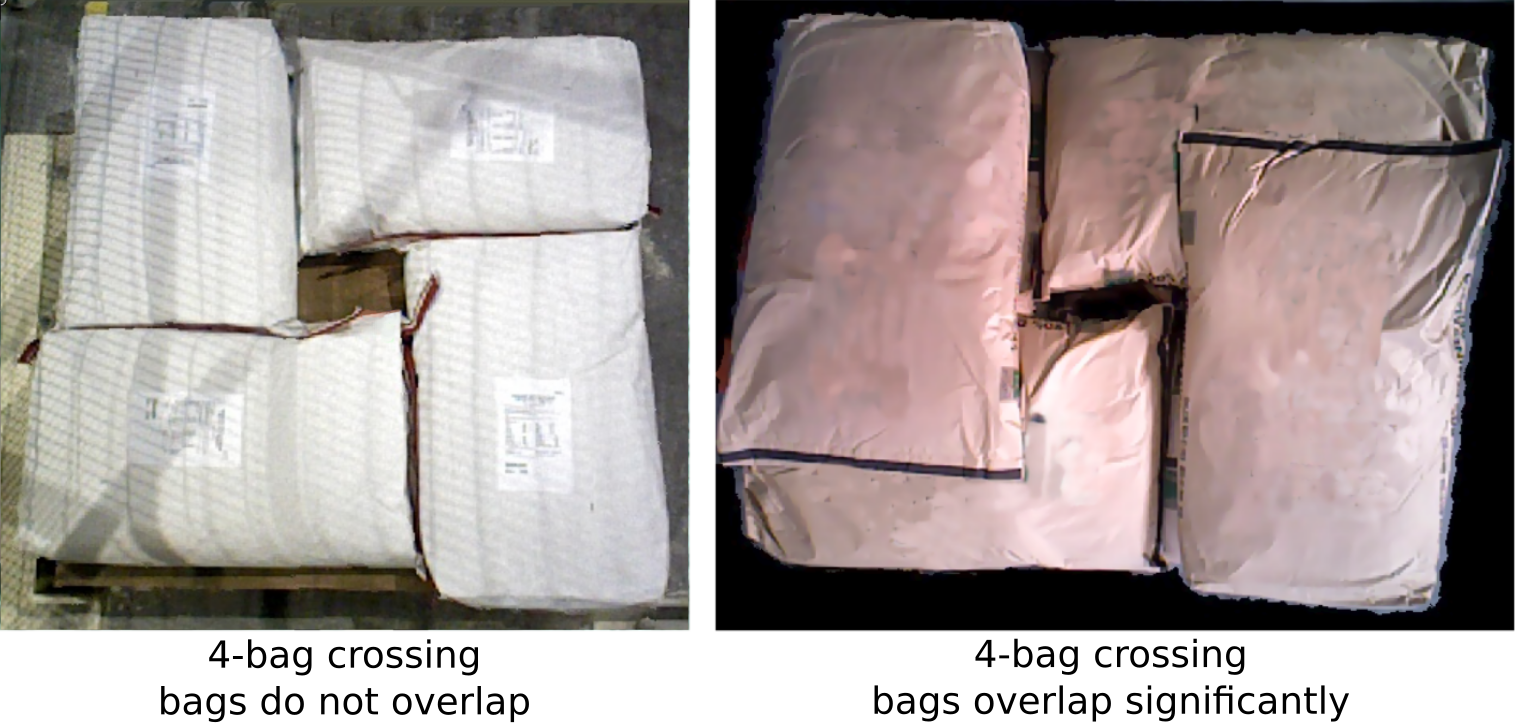
In the 4-bag (crossing) pattern, there are two horizontal and two vertical bags, forming a square. There may be significant overlap between the horizontal and vertical bags.
4-bag pattern (parallel)
In the 4-bag (parallel) pattern, the bags are disposed in parallel, in two groups of two.
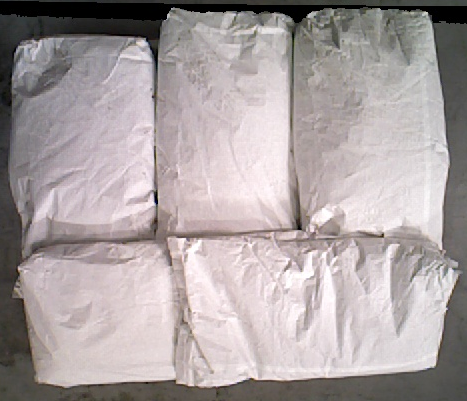
5-bag pattern
The 5-bag pattern includes three vertical bags and two horizontal bags.
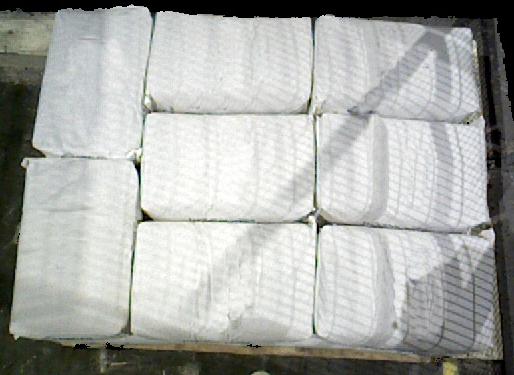
8-bag pattern
Finally, the 8-bag pattern consists of six horizontal bags and two vertical bags.
Horizontal overlapping bags
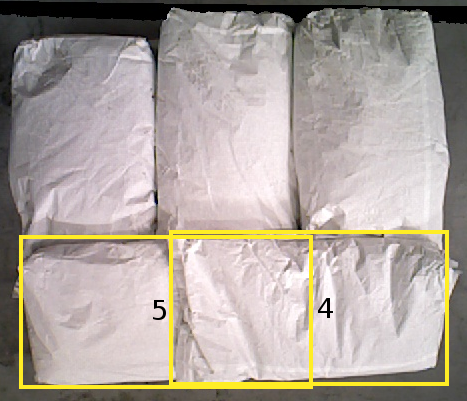
In the 5-bag pattern, it is common that the horizontal bags overlap (left bag above right bag, or vice-versa). If you want Pickit to detect which bag is overlapping, enable the checkbox Automatically compute which of the horizontal bags is overlapping. Otherwise (if there is no or little overlap, or if the overlap is always consistent for all layers), keep this checkbox disabled, and instead specify a fixed bag picking order.
Warning
The overlapping check can only be applied to the two horizontal bags of the 5-bag pattern. For other overlapping bags (within the 5-bag pattern or other bag patterns), the picking order must be set such that overlapping bags are picked first. The 4-bag (crossing) pattern is the only exception: in case bags are overlapping, Pickit automatically detects an appropriate picking order.
Pallet dimensions
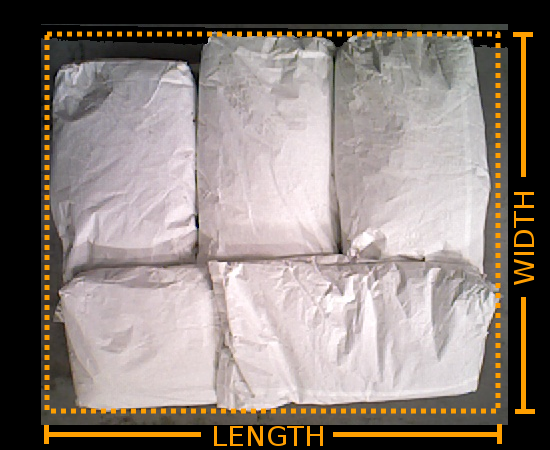
Specify the length and width of the pallet. Except for the 4-bag (crossing) pattern, the detection of the layer orientation assumes a rectangular pallet shape (that is, one side is significantly longer than the other).
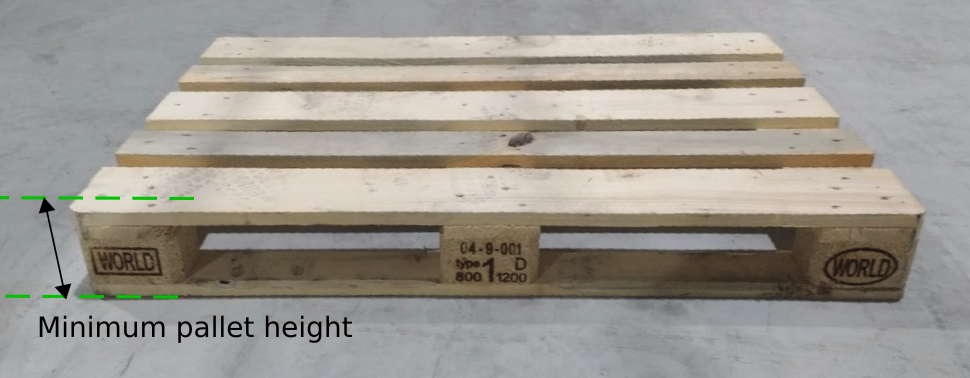
Minimum pallet height
Specify the minimum height of the last (bottom) layer of bags, relatively to the floor. We recommend measuring the height of the wooden pallet and adding around 40 mm. This value allows Pickit to know when the pallet is empty.
Note
The minimum pallet height is expressed relatively to the ROI frame. It is therefore important that the ROI frame XY-plane is located at the floor.
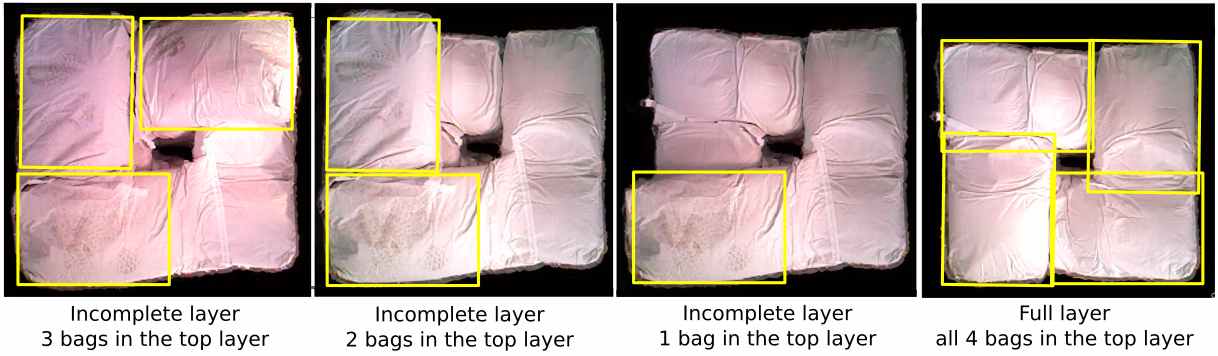
Full and/or incomplete layers
Select the status of the top layer to be full (all bags in the pattern are present) or incomplete (one or more bags are missing from the pattern). Select Detect automatically for Pickit to detect whether the top layer of the pallet is full or incomplete.
Warning
For a correct full/incomplete layer detection, it is important that the XY-plane of the Region of Interest is parallel to the floor, and not tilted.
Warning
For this feature to work well, the 3D shape of the top layer should be flat and regular. For instance, ideally the bags are shaped like a brick and lying flat (not too tilted relatively to the floor). Also, only points on the top of the pallet should be visible to the Pickit camera, and not on the sides.
If that is not the case for your application, it is recommended to always enforce full layers.
Optimize detections
In this section, we recommend to use no image fusion and no downsampling.
Picking the bags
Bag pick point offset
Depending on the type of bags, it might not be optimal to pick the bags from the center, as the heaviest part is sometimes located towards the bottom of the bag. For this reason, you can provide an offset to the pick pose, along the X-axis (red) of the bag. You can find this option in the Picking page, section Bag pick point offset.
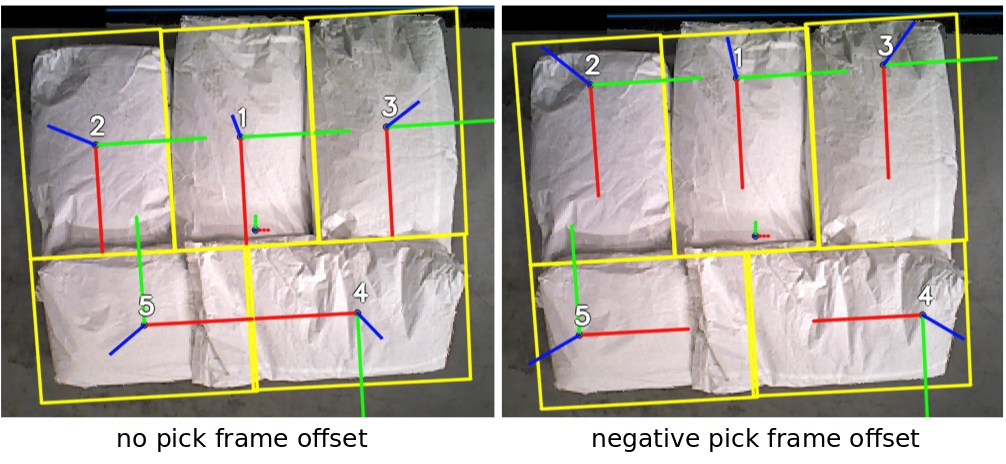
Bag picking order
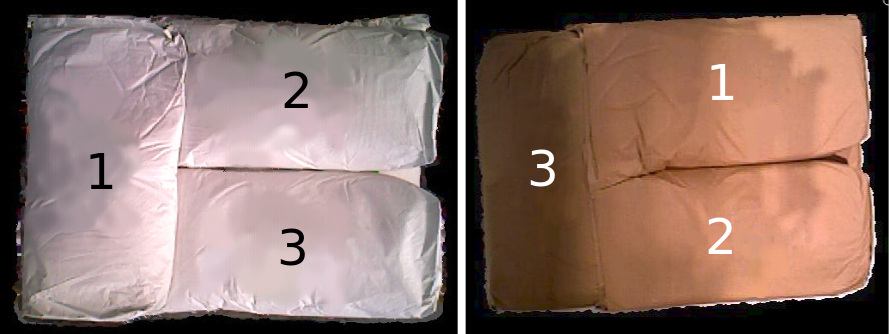
In section Bag picking order, you can specify the order at which you want the bags to be picked, for each possible layer orientation. If bags are overlapping on the pallet, the picking order is a crucial setting for a successful pick. Typically, the best is to pick the bags in the reverse order as they were palletized.
The image below shows two different 3-bag pallets. On the left, the vertical bag is overlapping the horizontal bags, and therefore it is preferred to pick the vertical bag first. On the right, we want to first pick the two horizontal bags, as they overlap the vertical bag.
Note
Suppose that you are detecting a 5-bag pattern, and have the checkbox Automatically compute which of the horizontal bags is overlapping enabled. Pickit will respect the picking order selected in this section, except for the order among the two horizontal bags, depending on which of them is detected to be on top.
Note
If you are detecting a 4-bag (crossing) pattern, Pickit automatically detects the best bag picking order for you. Thus, the Bag picking order section is not shown in the Picking page for that pattern.
Robot programming with Pickit Bags
Typically, the layers of the pallet are organized such that the orientation of the bag pattern alternates from layer to layer, flipping horizontally or vertically (depending on the pattern) from the previous layer. Detecting the correct orientation of the bag pattern (also referred as layer orientation) is the first step to correctly detect the bags.
The image below shows the possible layer orientations for each bag pattern.
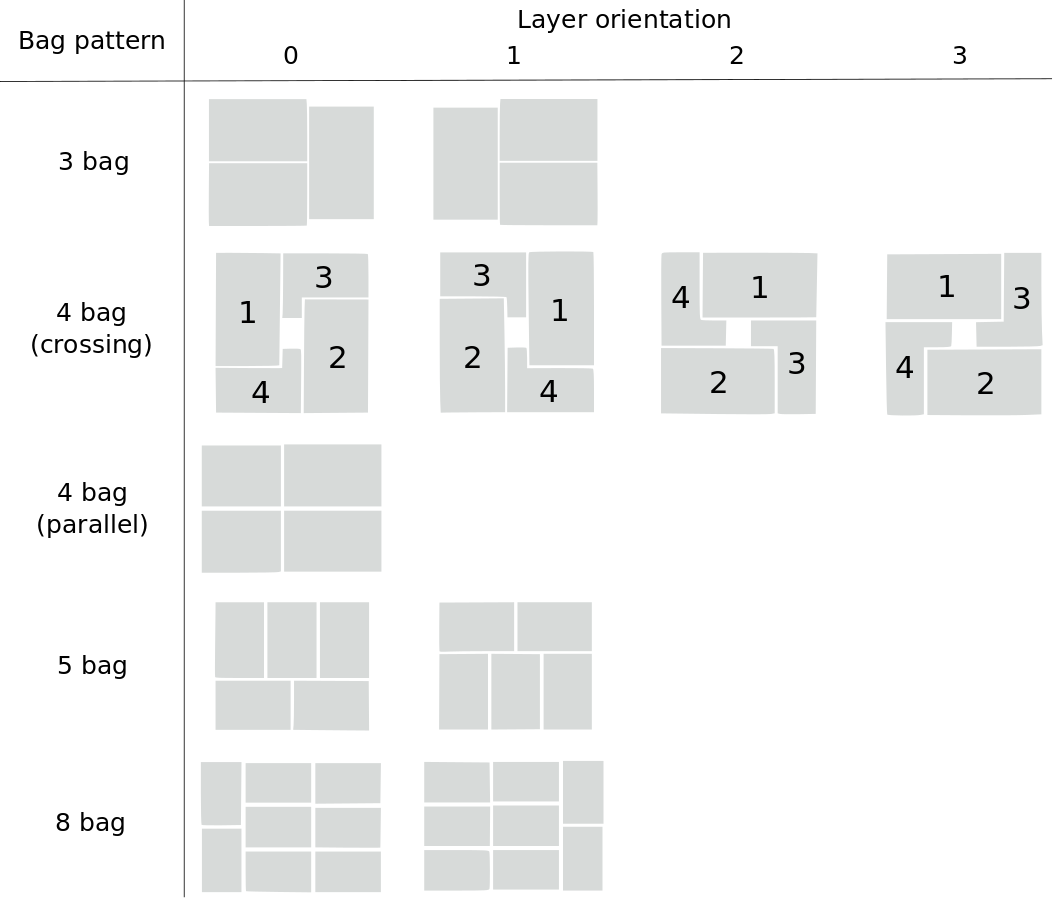
For 3, 5 and 8 bags, consecutive layers usually switch between orientations 0 and 1.
For the 4-bag pattern (crossing) there are four possible orientations. Consecutive layers usually switch between orientations 0 and 1 or between 2 and 3. Notice that the position of the individual bags is the same for orientations 0 and 2 and for 1 and 3, the difference being only the picking order. The picking order is relevant if neighboring bags are overlapping.
For the 4-bag pattern (parallel) there is only one possible orientation.
The detected bags are sent to the robot or PLC one by one: the first bag is sent upon triggering a detection, and the remaining bags are sent one at a time, upon requesting the next detected object. The robot program can, however, have access to the actual layer orientation, too. The socket interface variable object_type, which gets filled in after receiving a detection response from Pickit, contains information on the bag pattern and the detected layer orientation, according to the following table:
Bag pattern |
Layer orientation |
object_type |
|---|---|---|
3-bag |
0 |
0 |
1 |
1 |
|
4-bag (crossing) |
0 |
2 |
1 |
3 |
|
2 |
4 |
|
3 |
5 |
|
4-bag (parallel) |
0 |
6 |
5-bag |
0 |
7 |
1 |
8 |
|
8-bag |
0 |
9 |
1 |
10 |