System settings
Password protection
This feature enables two user types for the Pickit web interface: admin and operator. Admin is password-protected and has full privileges to configure the application and the Pickit platform. On the other hand, Operator can only monitor the application and collect data for troubleshooting and support.
Role |
Admin |
Operator |
|---|---|---|
Enable/disable robot mode |
✓ |
✓ |
Load/save snapshots |
✓ |
✓ |
Load setup and product |
✓ |
✓ |
Edit/save setup and product |
✓ |
✗ |
Display settings: Language and units |
✓ |
✓ |
Support settings: Download logs and backups |
✓ |
✓ |
Admin settings: Licenses, network, upgrades, … |
✓ |
✗ |

When password protection is enabled, the active user type is shown in the top bar.

License
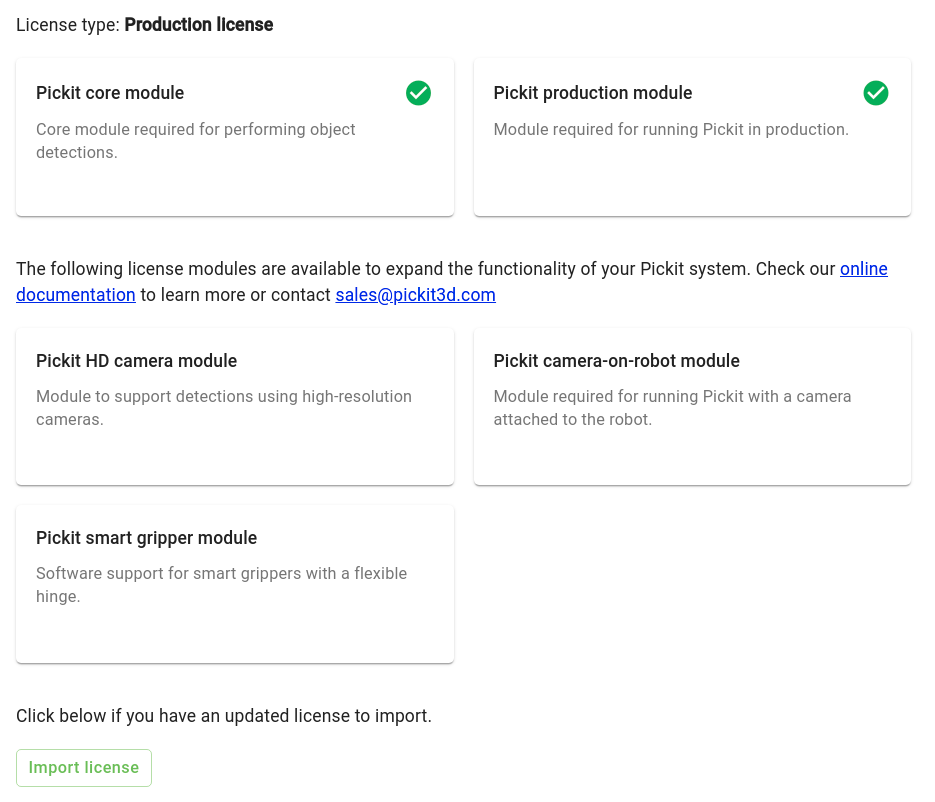
These settings allow you to inspect the details of the license file installed in your Pickit system. You can also learn about available extensions.
Install or update a license
When you receive a new license file for your Pickit system, for instance after purchasing an extension or renewing your upgrades support period, install it as follows:
Save the license file on the computer you use to access the Pickit web interface. You can always download the latest license file for your system from the Pickit upgrade site.
In the Pickit web interface, navigate to the Settings section, then
System settings > License. If password protection is enabled, you need to be logged in as admin.Expand the Update license section and click Import license.
Select the license file you saved in the first step.
Once imported, the new license is active and its modules are shown on the license page.
Note
A license file is tied to a specific Pickit system, and can’t be installed on a different one.
Upgrade Pickit version
These settings allow you to upgrade the Pickit software to the latest version. Refer to the Pickit system software upgrades article for step-by-step instructions.
System management
These settings allow you to manage and monitor different aspects of your Pickit system.
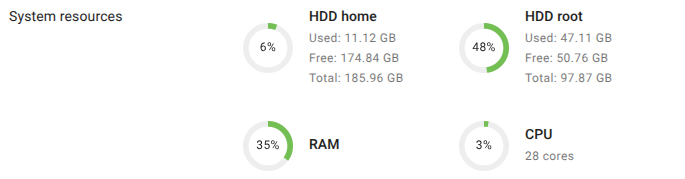
System resources: Monitor disk, CPU and RAM usage.
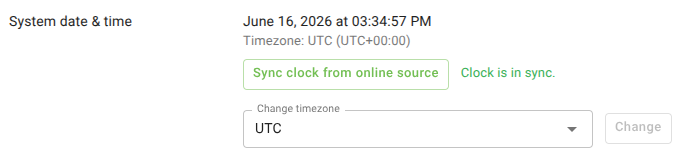
System date & time: Manage the date and time settings of the Pickit processor (not the computer used to access the web interface)
Monitor the current date, time and timezone.
Check if the processor clock is in sync with online time servers, and optionally sync the clock. Pickit systems are usually offline, and their clocks can drift after extended periods of time. If the computer accessing the web interface has Internet access, it’s possible to set the Pickit processor clock.
Change the Pickit processor timezone. Pickit systems ship in the UTC timezone by default, and timestamps in logs and filenames are reported in this timezone. It’s useful to set the timezone to the one of your facility.
System controls: Reboot or poweroff the Pickit system.

System logs: Download the system logs, either to send them to Pickit support or to inspect them yourself.

Download logs for Pickit support
The support logs help the Pickit support team understand a support question. To download and send them to us:
In the Pickit web interface, navigate to the Settings section, then
System settings > System management.Under System logs, click Download support logs. The logs are saved on the computer you use to access the Pickit web interface.
Send the downloaded file to support@pickit3d.com, together with a short description of the issue. If the file is too large to attach to an email, share it through a file transfer service instead.
Note
The support logs are an encrypted archive, meant to be sent to Pickit support. They can’t be opened by Pickit users. To inspect the logs yourself, download the user logs instead.
Download user logs
The user logs are meant for Pickit users to download and inspect. They include messages reported in the web interface logs tab from the last 30 days. User logs are useful for record keeping and troubleshooting. To download them, click Download user logs under System logs.
Additionally, and for convenience, you can click Download active user logs as CSV:
The active logs only include messages since Pickit was last started. If the file becomes too large, it includes a recent subset.
The file format is CSV (with
;as separator), and is meant to be imported into spreadsheet-like applications for easy processing and filtering of its contents.